
If you have a mobile device with Android 13 (or later), you can utilize the browser to access SmartPigs.
Please note that if you use SmartPigs through the browser, scanners cannot be connected.
Launch the browser on your mobile.
Input the IP address 87.249.117.174:7171 in the address bar.
After this, the following will be displayed in your browser. To change the language, click on the current language. A drop-down menu will appear, allowing you to select from the available languages.
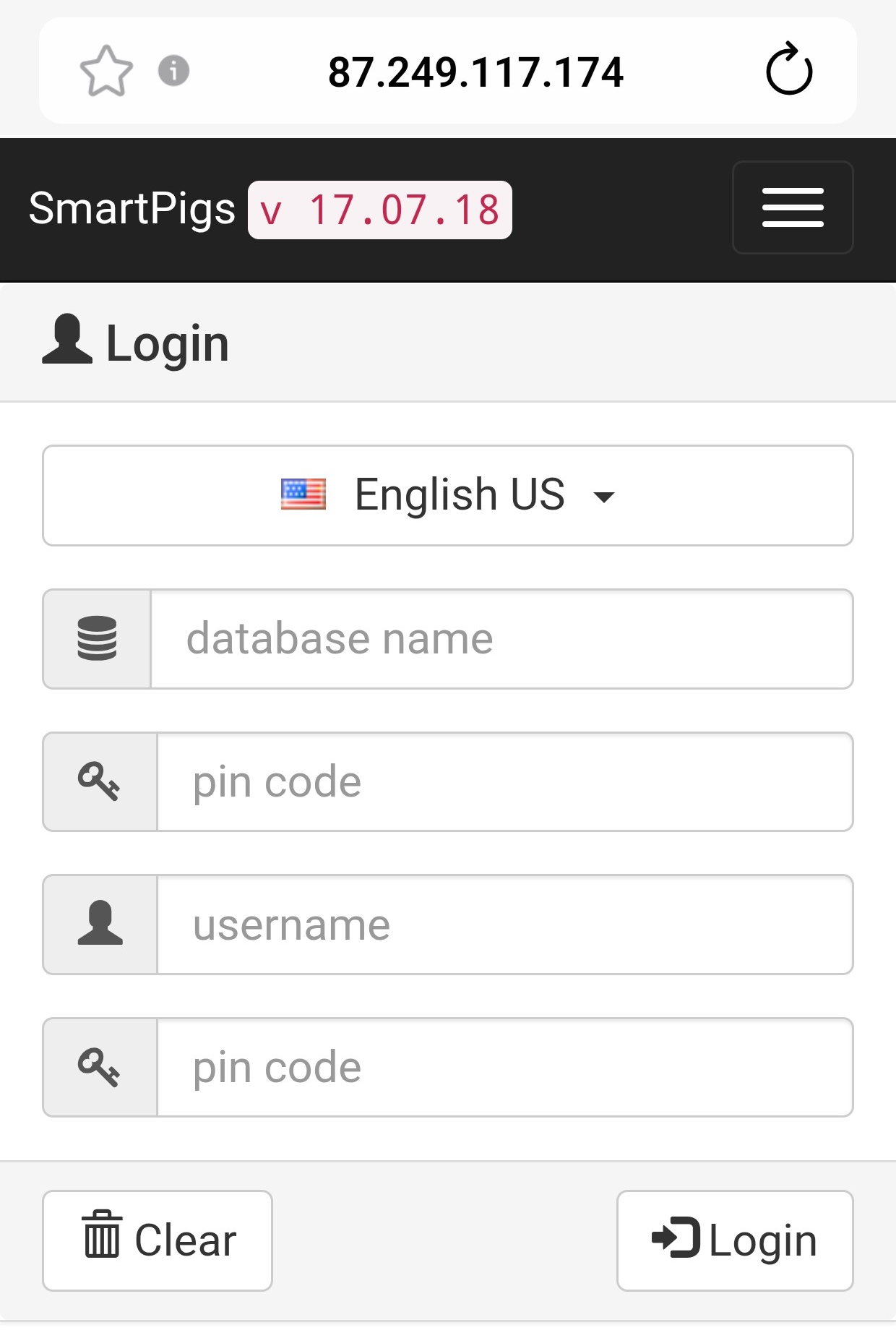
Fill in the required information on the mobile.
"Database name": Enter the 6 digits located at the top of PigVision; do not include "WP_". The same applies to a local installation of PigVision. Just use the text shown at the top.
"PIN code": This can be located under "General" – "Administration" – "Herd Info" (look for "PIN code").
"Username": Under "General" – "Administration" – "Employee," there is a code assigned to each employee. Please enter that code here.
"PIN code": Include the "AgroSync SmartPigs" – "PIN code" field via the "layout setup" and assign a personal PIN code to the employee. Enter the code here.
If you don't remember all the information, you can find it in PigVision. Please follow this guide.
Where and how do I find my login information for SmartPigs? : PigVision | Customer Service Portal