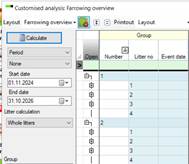
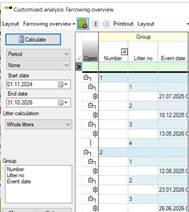
In the below example there are three groups selected to run the calculations on; Number, Litter No and Event date.
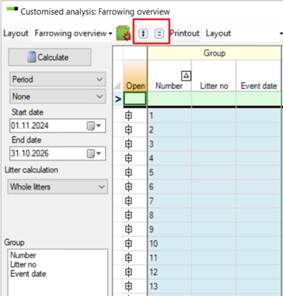
With the report calculated you can now expand the report by clicking on one of the columns in the Group.
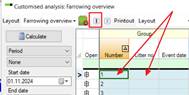
If you click in the first column and then on the “Double plus” icon, then the report with expand on the first level.
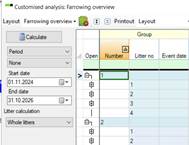
If you click on the second column and then on the “Double plus” icon, then the report will expand a level more.
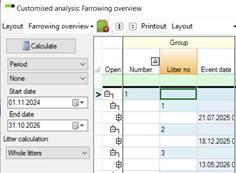
If you want to collapse the report back from expanded, click on the Group column to which you want to collapse the report back too.
Select the Group and then click on the Double minus icon.
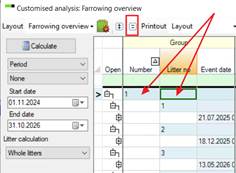
The result is:
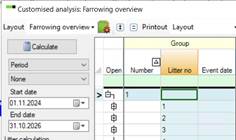
If you want the calculated reports to show by default the expanded in level one or two you can do this in the “Layout setup” for each report.
In the “Layout setup” open the tab “Special function” there are several options:
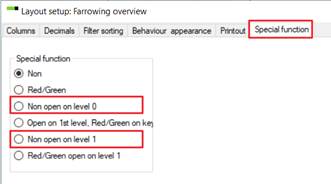
- Non open on level 0:
- Non open on level 1: