
Before you export farm animals, you need to make sure that they have a unique identifier apart from the animal number.
Any of the below tag-id / tattoo are valid unique identifier.
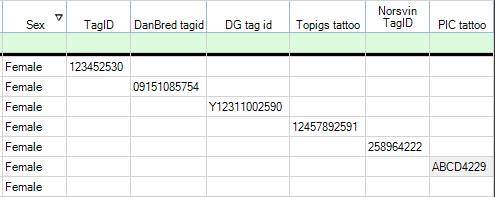
You can export animals which have the status "empty" and "pregnant". If you select a suckling sow, the program will give you an error message saying that is not valid to export sows nursing piglets. After weaning the sow, it will be possible to export her data.
Go to "Sows/Boars" - “Removal” - make a copy of the standard layout “PigVision” and rename it e.g. as “Transfer”

Click the icon  and click on the tab “Special function”. There are two options which usually are used in relation to export of farm animals
- "Export": Exports events from last service.
- "EXPORTALLEVENTS": exports all events linked to the animal. However, medications are not exported
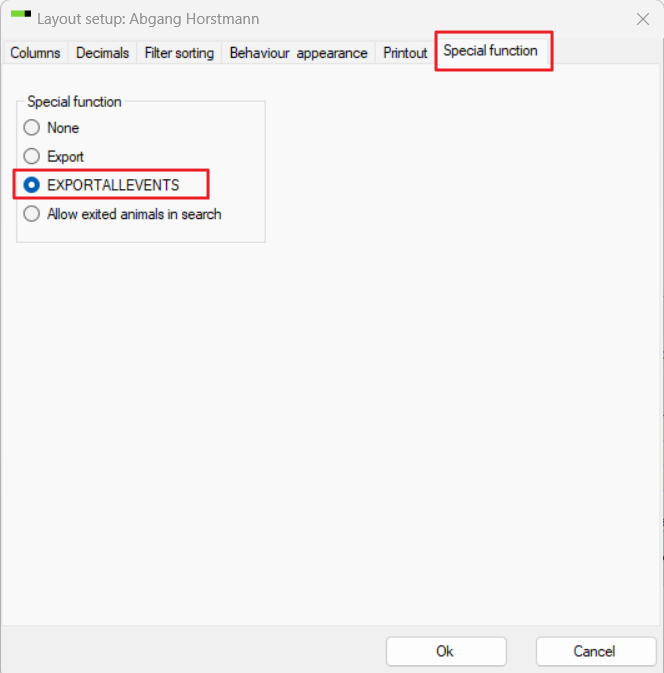
Choose your desired option for export - click on "Ok"
A pop-up with "Enter exit dates" comes up - fill in the correct exit date and click on "Ok"
Enter the farm animals you would like to export. In this example sows are are exported.

If you have a list of the sows that are to be transferred in an electronic form then you can copy (Ctrl+C) & paste (Ctrl+V) these numbers into the "Number" column.
After entering alle the animals which should be exported, click on the “Export” icon in the top menu
Windows Explorer will now open, and you can then select a location on your computer to save the file after giving it a name. End the export by clicking Ok.


The export ends with PigVision giving the message ”File created”.
The exported animals are now in the file and in PigVision they are now registered an exit date. You can now send the file to the receiver of the animals so that they can import then into their database - read more here: Importing sows : PigVision | Customer Service Portal